Tiger Touch · Prusa
Tiger Touch for Prusa 3D printers
Tiger Touch turns a BIGTREETECH Panda Touch or K-Touch into a live screen for your Prusa printers through PrusaLink: progress, time left and temperatures.
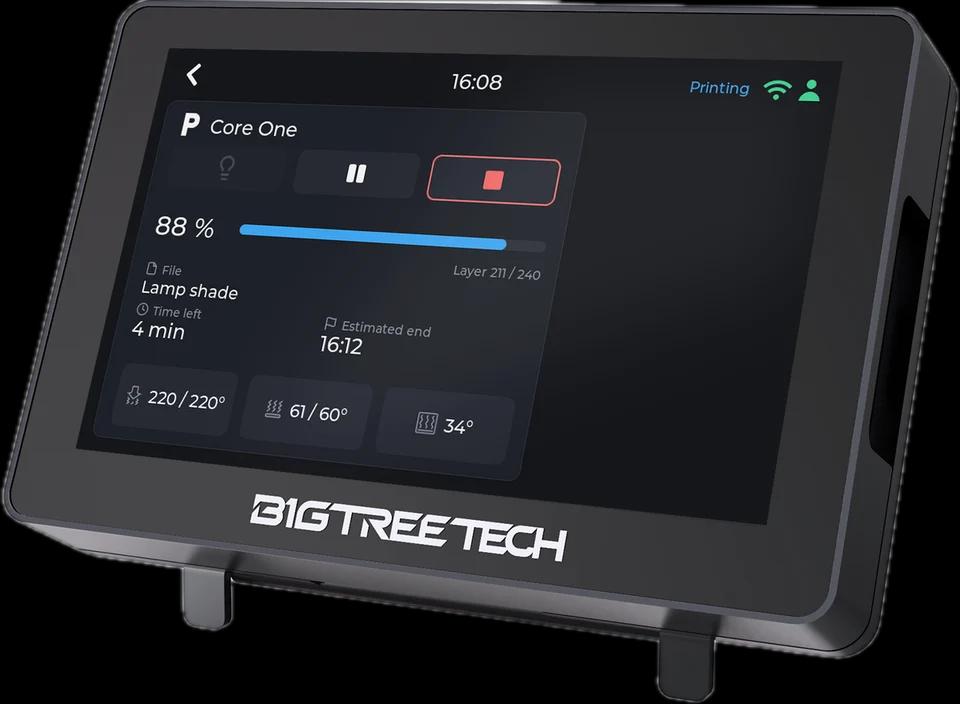
What it shows
- State, progress, time left and the file being printed
- Nozzle and bed temperatures, the chamber on a Core One
From the screen
Pause, resume and stop through PrusaLink; stop asks for a confirmation first. PrusaLink has no light command, so the light button stays dimmed.
How it connects
PrusaLink over HTTP on your local network, with Digest authentication (or the legacy API key when your account holds one).
Tested on real printers
Seen on a real Prusa: state, progress, time left and temperatures, and pause, resume and stop through PrusaLink.
Set it up in three steps
- 1
Enable PrusaLink on the printer and note its user and password.
- 2
Add the printer in Tiger Studio Manager (desktop app).
- 3
Flash Tiger Touch, sign in with the same TigerSystem account, and switch the printer on in Settings > Printers.
Good to know
Something looks wrong on your Prusa? An issue on GitHub with what the screen shows helps us fix it.
Prusa models named in the Tiger Touch docs
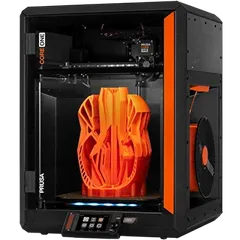
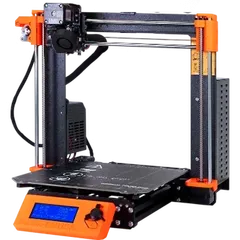
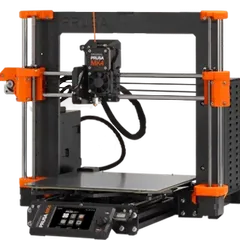
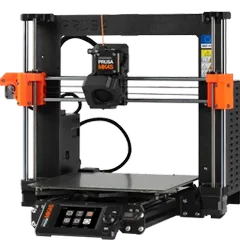
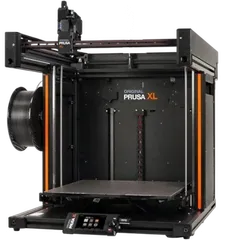
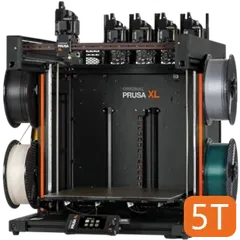
Core One, Core One L, MK4S, MK4, MK3.5, XL, XL 5T, MINI
Prusa printers in TigerSystem (12)
Questions about Prusa
Does it need Prusa Connect?
No. It talks to PrusaLink on your local network.
Can it switch the light?
No: PrusaLink has no light command.
Was it tried on a real Prusa?
Yes: the screen's reading and pause, resume and stop were checked on a real Prusa.
This page follows the Tiger Touch printer compatibility notes on GitHub.