Filament guide · Creality
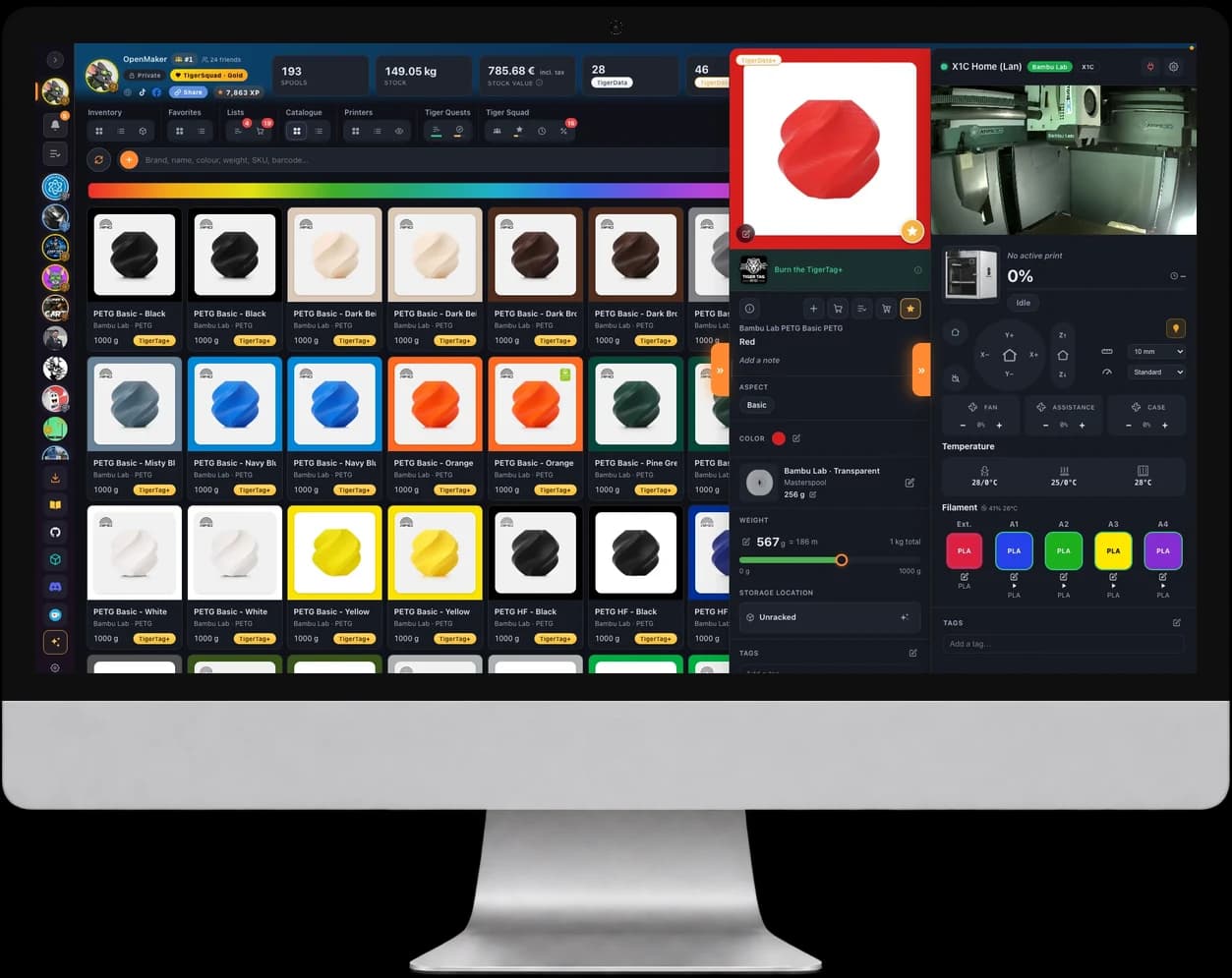
Creality filament in Tiger Studio Manager 2
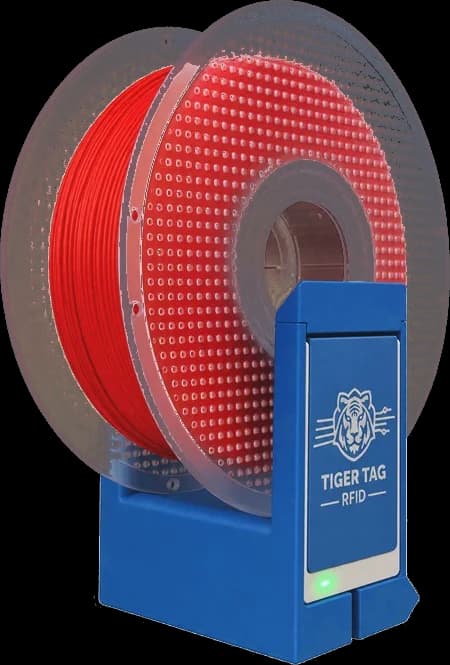
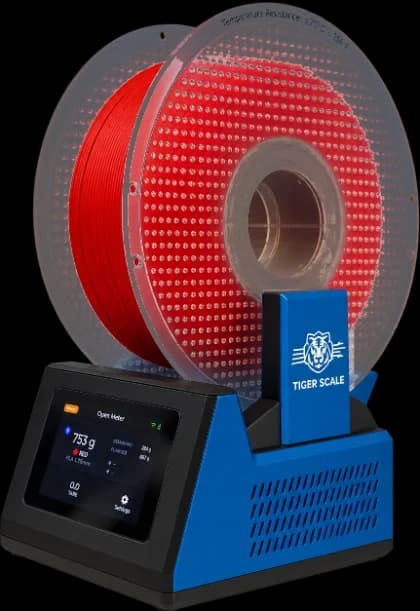
Manage your Creality filament in your inventory, with or without its chip: set the spool on the TigerPOD Mini and it opens, set it on the TigerScale and its weight updates.
Free desktop app


3 ways to add your spool
With or without a chip, your Creality filament goes into your inventory.
- 01
Link the RFID chip
Set the spool on the TigerPOD Mini and link its chip, once, to a spool of your inventory. From then on, setting it down opens its card.
- 02
From the catalogue
The 145 Creality products are already in the app's catalogue: pick yours, and its material, colour and settings come with it.
Creality catalogue → - 03
Barcode and TigerQR+
Scan the box's barcode: the catalogue finds the exact product. Then print the spool's TigerQR+: scanning it opens the spool.
TigerQR →
Creality RFID chip
Nothing is written to your chip
The Creality chip is encrypted. Tiger Studio does not read its content and writes nothing to it: it recognises the chip by its ID. Your spool stays as it came out of the box, and your printer reads it as before.
A TigerQR+ for every Creality spool
Every Creality product in the catalogue has its TigerQR+, on its page. Here is the one for Creality Hyper PLA RFID Red: pick the format of your label printer, print it, stick it on the spool.
Put this TigerQR+ on your site
Shop or website: these two lines show this TigerQR+, with its formats, PNG, SVG and print.
<div data-tigertag-label="666105845"></div>
<script src="https://tigersystem.io/widget/label.js" async></script>
TigerQR+
Any phone that scans the QR opens the product's page, with its settings, no app needed. How TigerQR works
Creality printers
Your CFS in Tiger Studio
Connect your Creality printer over your local network: its filament slots, the current print and the camera, live.
- Filament slots
- Current print
- Camera
Compatible Creality printers
Filament from another brand
TigerTag + TigerSpool
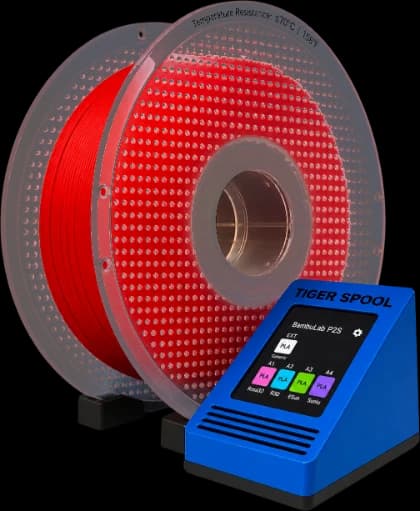
A TigerTag chip and the TigerSpool fill the slot like a Creality spool: material, colour and temperatures.
Discover the TigerSpool →Where to buy
Where to find filament with TigerTag
Spools that come with their TigerTag chip, ready to tap.
Every TigerTag filament
The Atome3D collection of spools sold with a TigerTag chip: Rosa3D, eSun, Sunlu, R3D and more.
See the collection →A chip for your other spools
TigerTag chips on the TigerTag shop, or any blank NTAG 213, 215 or 216: the free apps write it.
Frequently asked questions
Does Tiger Studio work with Creality RFID chips?
Yes. It recognises the chip by its ID and links it to a spool of your inventory. It does not read its encrypted content and writes nothing to it.
Can I add a Creality spool without a chip?
Yes: from the catalogue, which holds 145 Creality products, with the box's barcode, or by hand.
What happens when I set the spool down again?
On the TigerPOD Mini, a linked spool opens straight away. On the TigerScale, its weight updates.
Does it change my Creality spool?
No. Nothing is written to the chip: the spool stays as it is and your printer reads it as before.
Is Tiger Studio Manager 2 free?
Yes. It is a free desktop app for Windows, macOS and Linux.
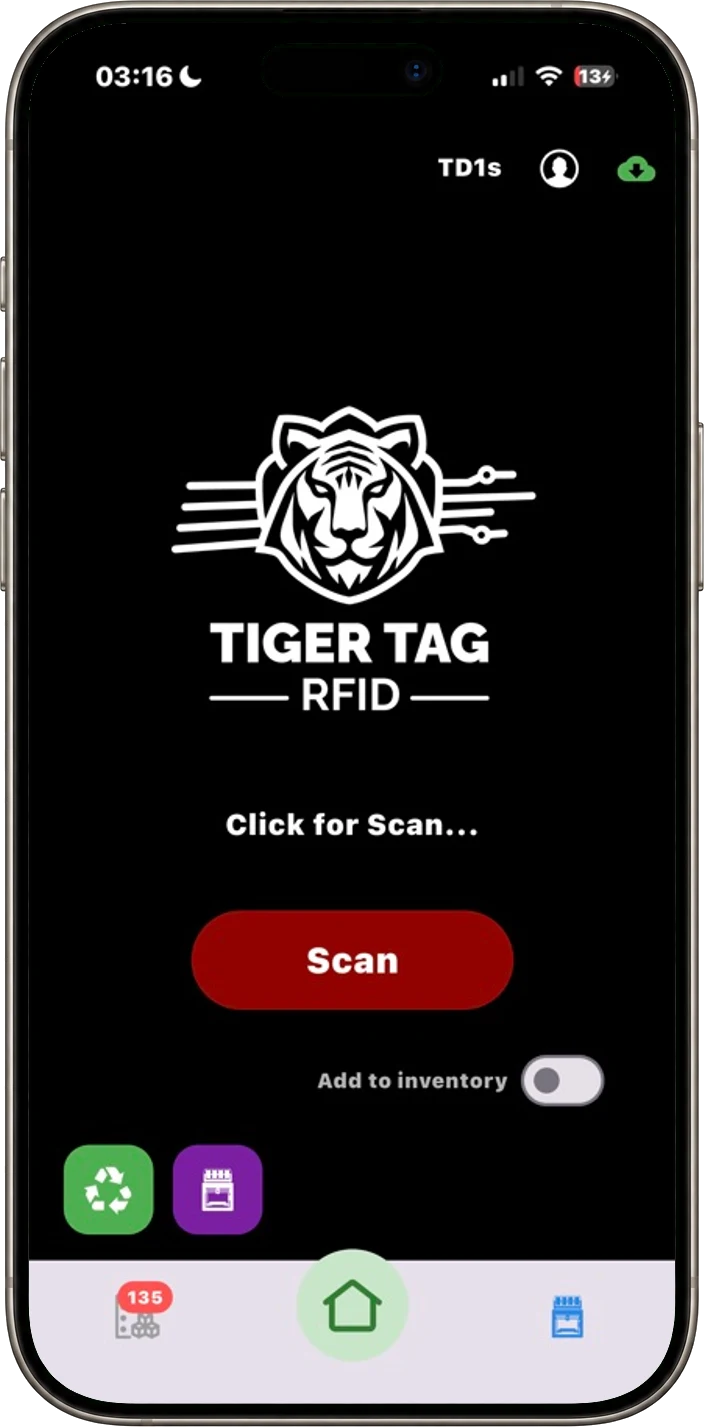
Free. No subscription. Works offline. Nothing locked in.
Get Tiger Studio Manager 2 on your desktop, and the app on your phone.